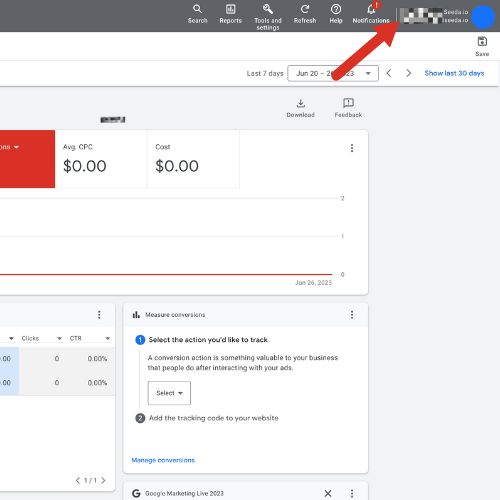
In the Overview section find your Customer ID number at the top right of the window
Select and copy the number.
👉 Step 2 - Connect Google Ads to Seeda
In your Seeda dashboard click on Connections in the left -hand menu, then find the Google Ads tile and select Connect.
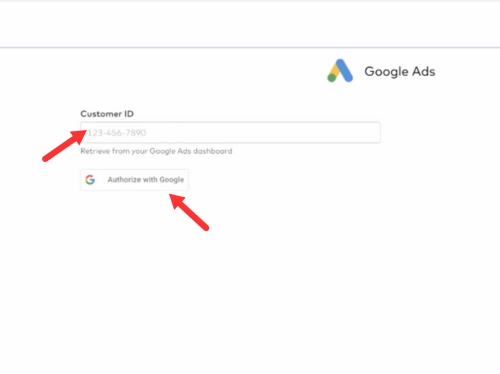
Paste your Customer ID in the box, then click Authorise With Google
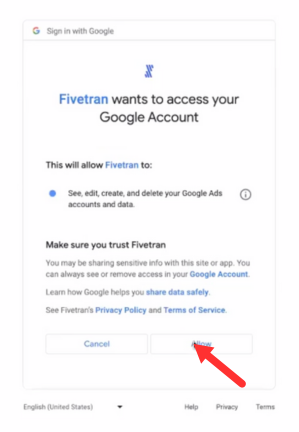
3. Choose your Google account then select Allow
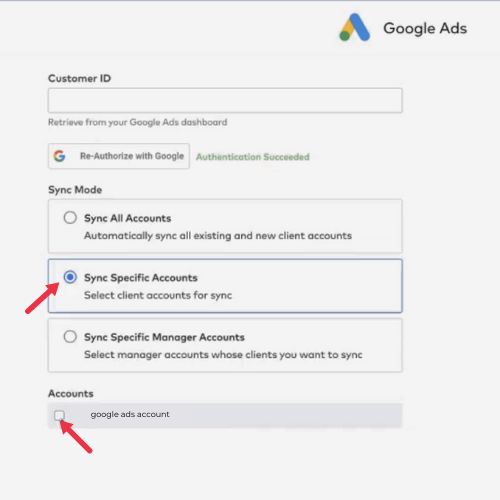
4. In the Sync Mode section select Sync Specific Accounts
5. In the Accounts section check the box of your google ads account
6. Then select Save & Test in the bottom right corner
NOTE: It is essential that you set up UTM Parameters for your Google Ads in order for Seeda to work correctly. You can find the UTM Setup Guide in the Seeda Help Centre or by clicking here.
See what your marketing is actually worth
Book a no obligation demo and we will show you how Seeda measures true incremental
performance across every channel.